Tag capital work to a project.
Capital improvement lines can now carry a Project Name. It's optional and takes a second, but it lets you roll up every charge for a project — even a pile of small purchases that individually would never meet the capitalization threshold — so the true project cost is visible and the call to capitalize is easy to make.
A capital project rarely shows up as one clean charge. A unit turn or a roof job is a dozen runs to Home Depot, a supplier order, a rental, a part here and there — each one small enough on its own to look like a routine repair. Coded that way, they scatter across the ledger and the project as a whole never adds up. Now you can tag those charges with a Project Name, and the tool does the adding up for you.
Check Capital Improvement, name the project
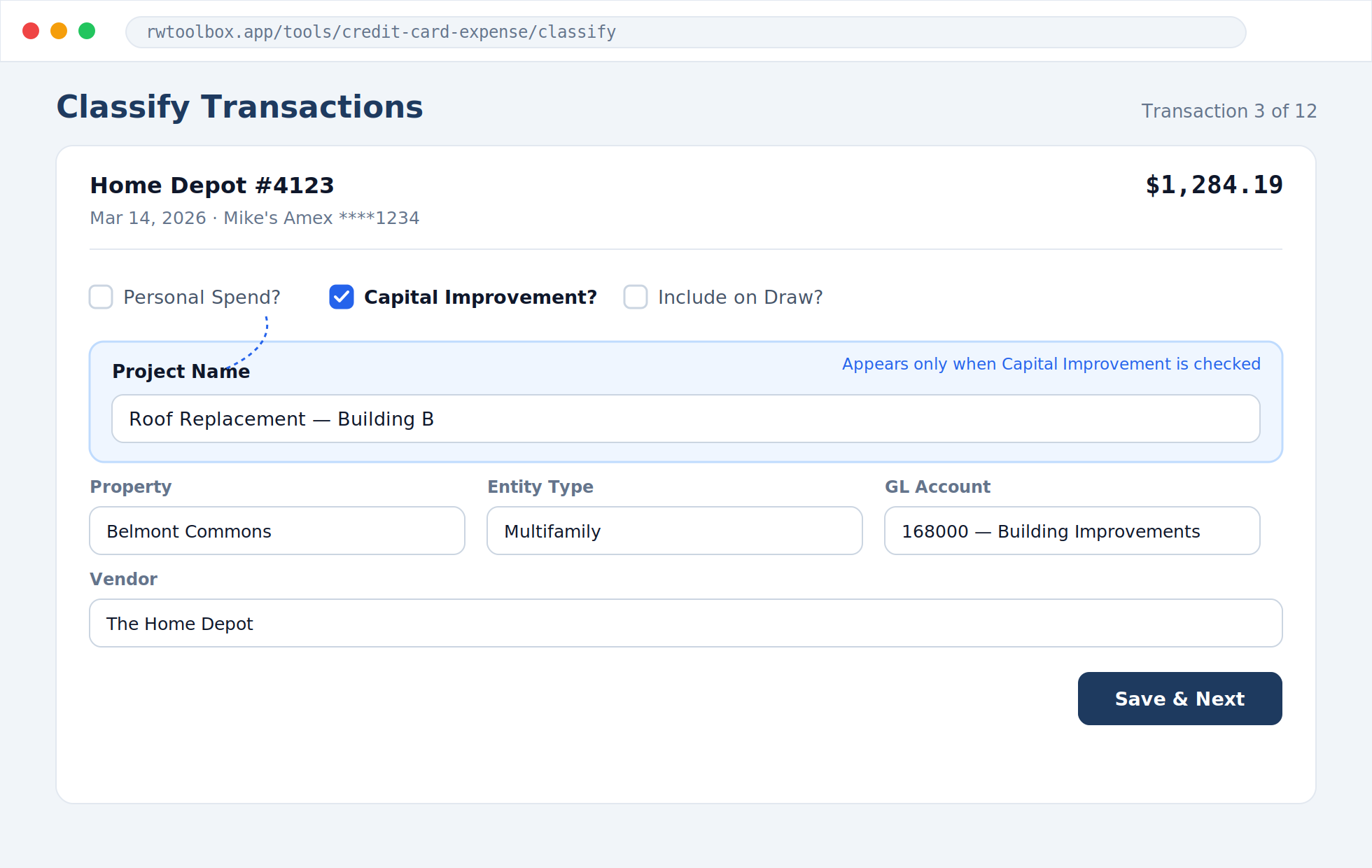
On the classify screen, tick Capital Improvement? and an optional Project Name field appears right underneath. Type whatever names the job — “Roof Replacement — Building B,” “Unit 3B Reno.” Use the same name on every charge that belongs to it.
It’s entirely optional and only shows for capital lines — nothing changes for ordinary expenses. Combined transactions inherit the project name along with the rest of the classification.
See the whole project cost, not the pieces
Because every charge for a job shares one name, the individual purchases — none of which may clear the capitalization threshold alone — roll up into a single project total. That’s the number that actually decides whether the work should be capitalized, and now it’s in front of you instead of buried across a statement.
Grouped and subtotaled on the invoice
For Accounting / FinanceOn the payable invoice (PDF and Excel), capital lines with a project name are grouped under that project with their own subtotal — the same clean sub-grouping the MHP Lot # already uses. Invoices without project names look exactly as they did before.
Right there in the accounting export
A Project column now appears on the Accounting Export table (and in the Excel download), so you can filter, sort, and total by project alongside everything else — and hand accounting a clean per-project breakdown.
How to use it
- While classifying a capital charge, check Capital Improvement?
- In the Project Name field that appears, type the project’s name.
- Reuse that exact name on every other charge for the same project — consistency is what makes them group.
- Watch it add up on the Accounting Export’s Project column and in each project’s invoice subtotal.
Tip: keep a short, consistent naming convention so the same project always lands in the same bucket — “Property — Scope” works well.